Learn FacadePM
FacadePM tutorials
Practical FacadePM tutorials with genuine views of WBS, activity planning and progress, plus plan-qualified resources and commercial guidance.
The exercises below use the built-in Harbour sample. Aster Quay (AQF-2601) is a different fictional demonstration project shown in the genuine FacadePM 0.1.4 screenshots. The pictured values are examples, not the results to expect from a Harbour exercise. Use the full-size image links to inspect detail.
Structure the work with WBS
Applicable plans: All plans. User-role requirements also apply.
Use the fictional Harbour sample for these exercises. Select the project first, then open Project WBS. WBS organises planning work; the Building, Elevation and Zone hierarchy describes physical locations. Keep these structures clear before entering activities.
- Review the sample hierarchy and identify the parent for a small practice work package.
- Create or rename a WBS item within the selected project. Review its code and parent before moving it.
- Use Save all for WBS edits, then reload and confirm the hierarchy and saved values. Avoid practising on unrelated customer projects.
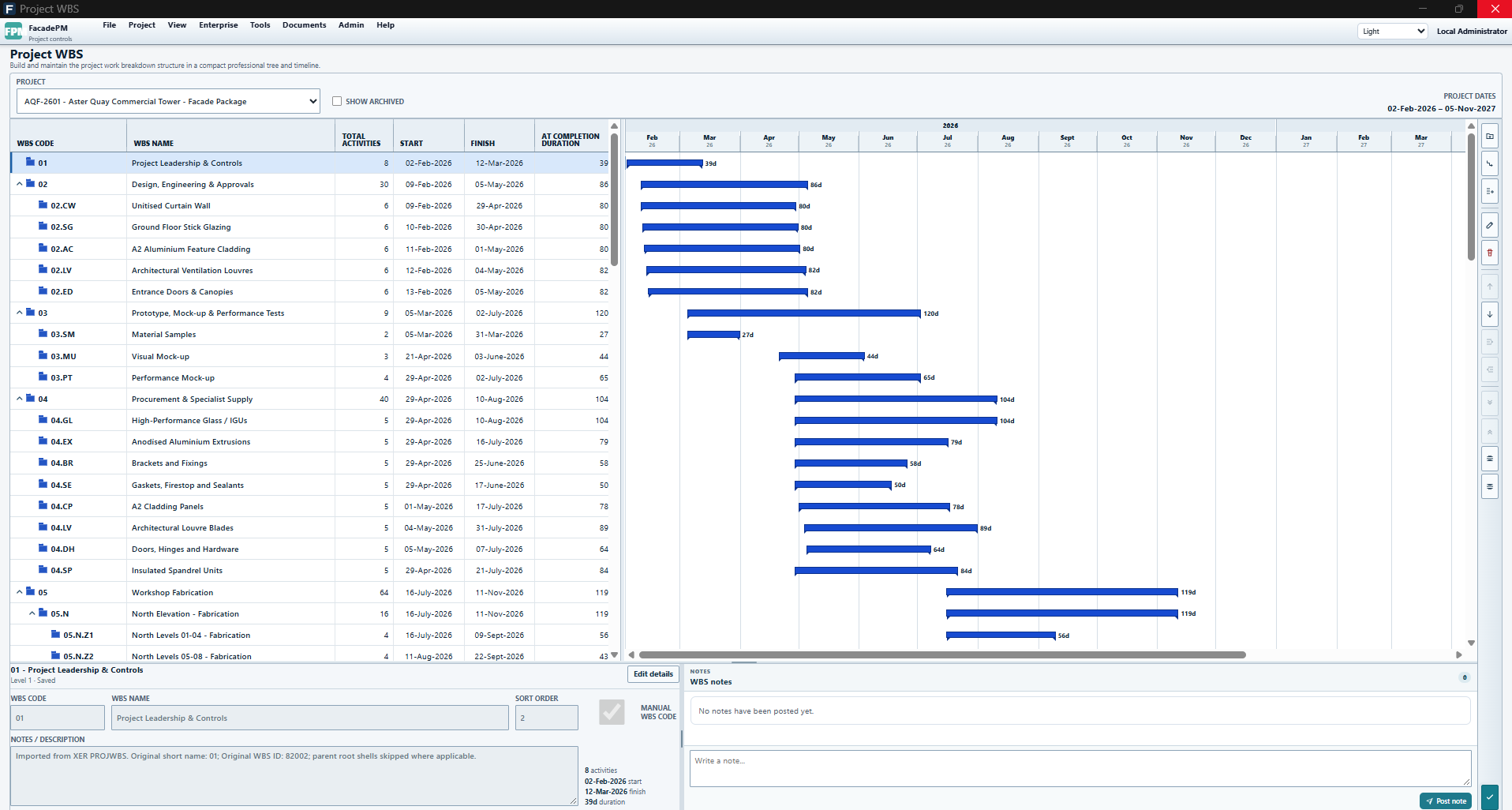
FacadePM Project WBS for fictional Aster Quay (AQF-2601), showing grouped work, activity counts, dates and a timeline.
Applicable paid plans: Schedule, Schedule + Resources, Project Controls, Complete. User-role requirements apply.
View full-size Project WBS screenshotAdd and edit activities
Applicable plans: All plans. User-role requirements also apply.
Schedule Builder is the primary planning and editing workspace. Quick Add creates batches; Activity Register is useful for analysis and record navigation. Category describes the work, while Scheduling Kind determines whether it is a Task, Start milestone or Finish milestone.
The Aster Quay image illustrates the Builder grid and Gantt. Its comparison selector reads Project Baseline - Unassigned; this image does not demonstrate an assigned baseline or prove that a calculation was applied to saved dates.
- Select Harbour and the intended WBS/location context before adding activities.
- For a Task, review duration, planned dates and progress. A milestone has one event date, zero duration and 0% or 100% progress; a zero-duration Task remains a Task unless its kind is explicitly changed.
- In Builder, use F2 or replacement typing to edit a cell. Enter moves down after saving; Tab and Shift+Tab move between editable cells. Escape cancels the current edit. Review invalid values before retrying.
- Reload after saving to confirm persistence. Check the project context again when switching projects.
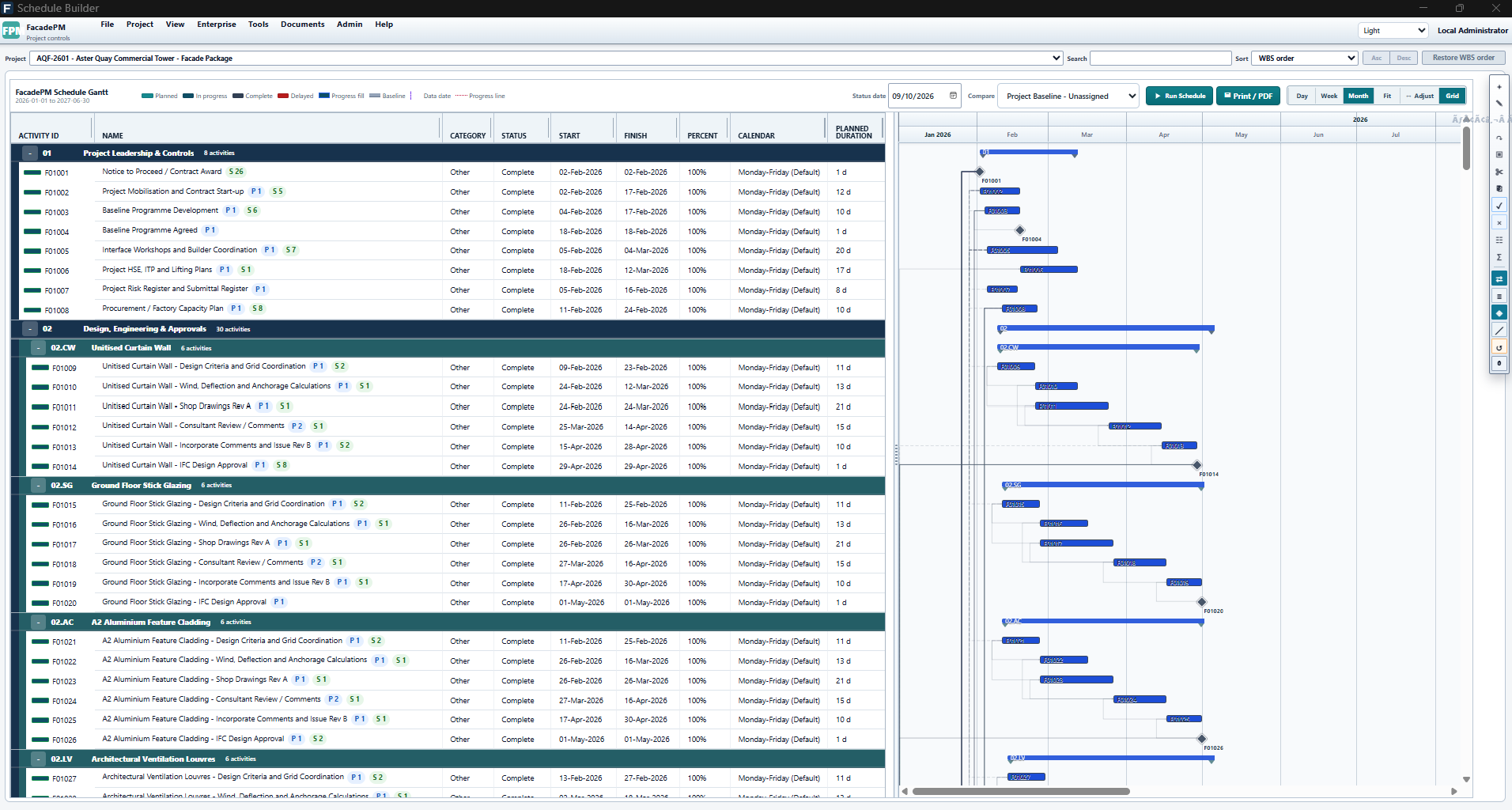
FacadePM Schedule Builder for fictional Aster Quay (AQF-2601), showing WBS, activities and Gantt with Project Baseline - Unassigned selected.
Applicable paid plans: Schedule, Schedule + Resources, Project Controls, Complete. User-role requirements apply.
View full-size Schedule Builder screenshotReview relationships
Applicable plans: All plans. User-role requirements also apply.
Relationships connect predecessor and successor activities. Keep relationship maintenance in the selected project's planning context and use the relationships workspace or Builder detail access to inspect the records.
- Select a sample activity and inspect its predecessor and successor details.
- Review the relationship type and lag, then make a deliberate practice change and save it.
- Reload to verify the relationship, then run the schedule to inspect its effect. A relationship edit and a schedule calculation are separate actions; calculation does not itself apply new live dates.
Check working calendars
Applicable plans: All plans; resource availability additionally requires Schedule + Resources or above. User-role requirements also apply.
Open Project Calendars with Harbour selected. An active Activity calendar takes precedence over the active Project calendar for activity dates; otherwise the built-in Monday-Friday week applies. Dated exceptions override the standard week, and archived assignments fall through. Calendar Library membership or a Default label alone does not assign a global fallback.
Resource calendars do not silently change critical-path dates. An active Resource calendar governs resource availability and capacity, falling back to the project calendar where applicable.
- Inspect the activity and project calendar assignments before interpreting calculated dates.
- Review working days and dated exceptions. Clone a shared master before changing it if you need an independent calendar; editing a master affects its assignments.
- Run a calculation to inspect the effect. Calendar assignment alone does not save recalculated activity dates.
Calculate before changing the saved programme
Applicable plans: All plans. User-role requirements also apply.
Select Harbour, then choose Run Schedule (F9). The calculation uses the selected project's saved activities, including work outside the visible filter or a collapsed WBS. The calculated dates are not saved project state.
- Save intended activity edits before calculating, and confirm the project shown in the scheduling action.
- Review calculated results alongside the saved activity dates and the relevant calendars and relationships.
- Use the existing controlled schedule proposal/approval workflow to review and apply intended live date changes. Do not report a preview as the saved programme.
- Reload the project to check the saved state after any approved application of changes.
Interpret schedule progress
Applicable plans: All plans. User-role requirements also apply.
Open Project Control Dashboard and confirm Harbour is selected. The duration-weighted schedule progress measure gives longer tasks more weight than short tasks. WBS summaries are not counted a second time; zero-duration rows, including milestones, have no duration weight. No eligible duration produces No data.
Schedule progress is distinct from commercial claimed progress. A milestone's own 0% or 100% completion remains useful even though it contributes no duration weight to the schedule total.
The separate Aster Quay Dashboard example shows 54.55% schedule progress and a commercial No claimable value state with zero revised budget. Its certified, paid and outstanding figures remain as displayed; the image does not demonstrate a claimable-value percentage or financial reconciliation. This full commercial view requires Project Controls or Complete, while the schedule progress lesson applies to all plans.
- Inspect saved progress on a sample Task and the project data date.
- Compare activity-level progress with the schedule total rather than averaging visible row percentages.
- Use Activity Register filters and its analytical Gantt to inspect the same selected records. Start/Finish milestone kinds remain distinct from Category.
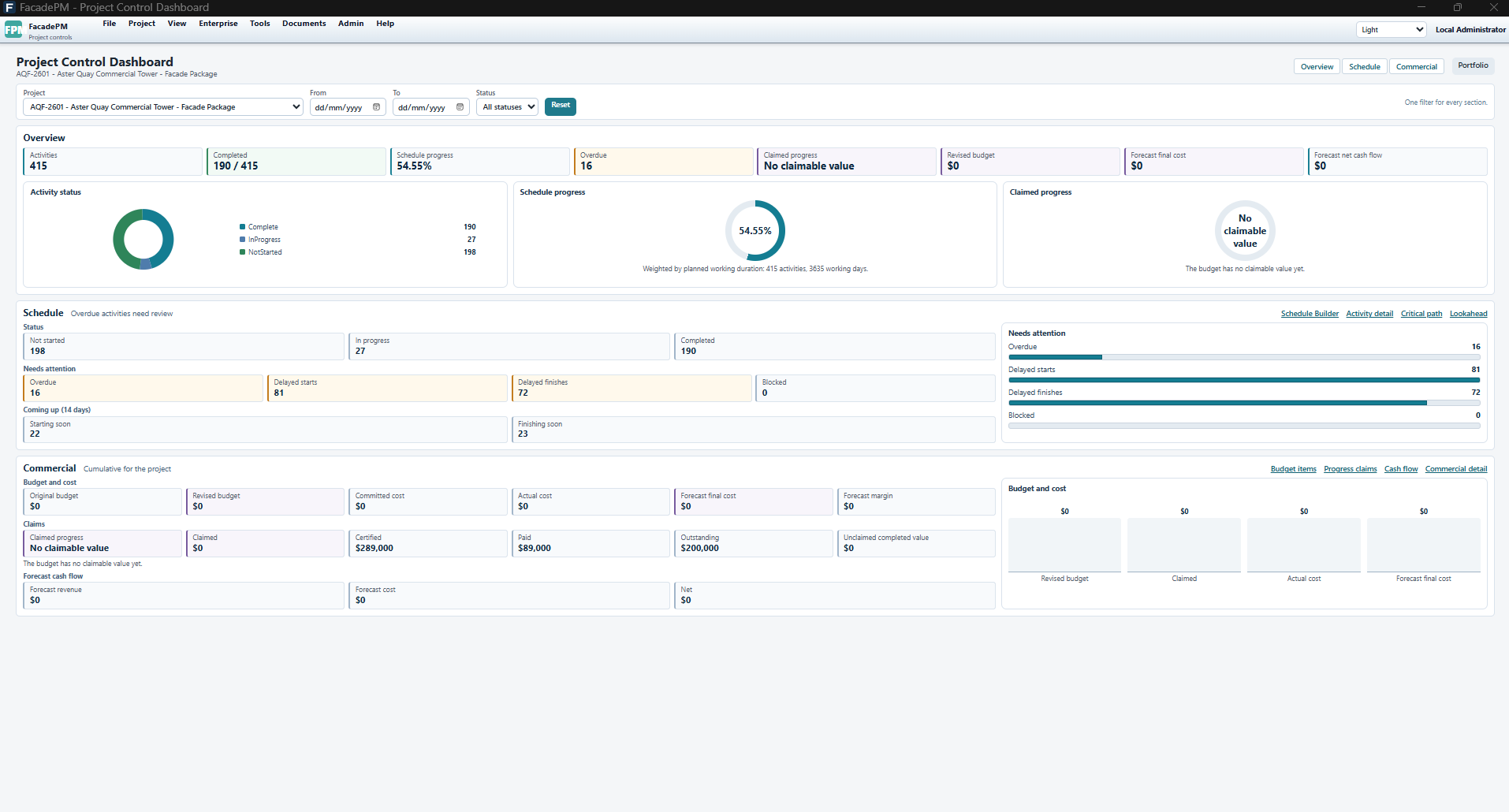
FacadePM Project Control Dashboard for fictional Aster Quay (AQF-2601): 54.55% schedule progress; commercial claimed progress shows No claimable value. Commercial views require Project Controls or Complete.
Applicable paid plans: Project Controls, Complete. User-role requirements apply.
View full-size Project Control Dashboard screenshotKeep baseline comparisons controlled
Applicable plans: All plans. User-role requirements also apply.
The Harbour sample baseline is explicitly unapproved demonstration data. A baseline comparison and current saved activity dates represent different states; neither makes a calculation preview an approved programme.
- Open the baseline controls for the selected project and inspect the sample baseline's status.
- Compare baseline and current dates without treating the demonstration as customer approval.
- Use the application's existing baseline and schedule-change governance workflow for intended changes. Confirm the chosen baseline and project after reloading; preserve independent backups before important programme changes.
Review allocations and demand
Applicable plans: Schedule + Resources, Project Controls and Complete. User-role requirements also apply.
Select the Harbour project and open its resource views. Resource records and allocations connect capacity and demand to the programme. Resource-aware planning has its own applicable entitlement; resource calendars are availability inputs, not an instruction to silently reschedule activities.
- Inspect a sample resource's availability and calendar assignment.
- Review the activity's resource allocations and the resulting demand in the selected project.
- Save any deliberate practice change, reload it and compare demand with available capacity. Keep resource findings separate from saved schedule-date changes.
Read budgets, claims and cash flow
Applicable plans: Project Controls and Complete. User-role requirements also apply.
Use only Harbour's fictional commercial records for practice. Commercial claimed progress compares cumulative externally claimed value with the current revised budget, including approved variations. Submitted, certified, partly paid and paid claims contribute; draft, rejected, void and archived claims are excluded. Certified and paid amounts remain separate figures.
A missing budget or no-value state is not 0% schedule completion. Overclaim states need review. These measures do not prove payment, accounting reconciliation or audited financial accuracy.
- Inspect the sample budget and approved variations before interpreting the denominator.
- Compare a draft claim with an externally claimed record and review their statuses.
- Review claimed, certified and paid figures separately from the duration-weighted schedule progress view.
- Inspect Cashflow and, where appropriate, the project Status Pack or dashboard export. Verify the project and filters before sharing an output.